

Overview
Retell and Five9 are connected over a pre-built SIP trunk that already exists between the two platforms, so you don’t build or configure a trunk yourself. You import your Five9 number into Retell, then point a Five9 IVR script at that number. Once the connection is in place you can:- Transfer inbound calls from a Five9 IVR script to your Retell agent.
- Hand the call back to Five9 (to a skill, an agent, or an external number), or end it, using routing headers set on your agent’s End Call tool or end node. See Hand the call back to Five9.
Before you start
Who does what
You won’t complete this setup alone. Plan the work with your Five9 representative before you start:Import your Five9 number into Retell
- In the Retell dashboard, go to Phone Numbers and choose Connect to your own number.
- Enter your number in E.164 format, for example
+19995550106. - In Termination URI, enter the Five9 SBC signaling IP for your data center, followed by the TLS port
5061, for example208.69.29.18:5061. See Five9 SBC signaling IPs below. - Leave Outbound Transport at its default. It only applies to calls from Retell to Five9, which this inbound-only trunk doesn’t carry.
- Leave SIP Trunk User Name and SIP Trunk Password blank. The pre-built trunk doesn’t use digest authentication, so credentials here cause the call to fail. Optionally add a Nickname to make the number easier to identify.
- Click Save, then assign your Retell agent to this number for inbound calls.
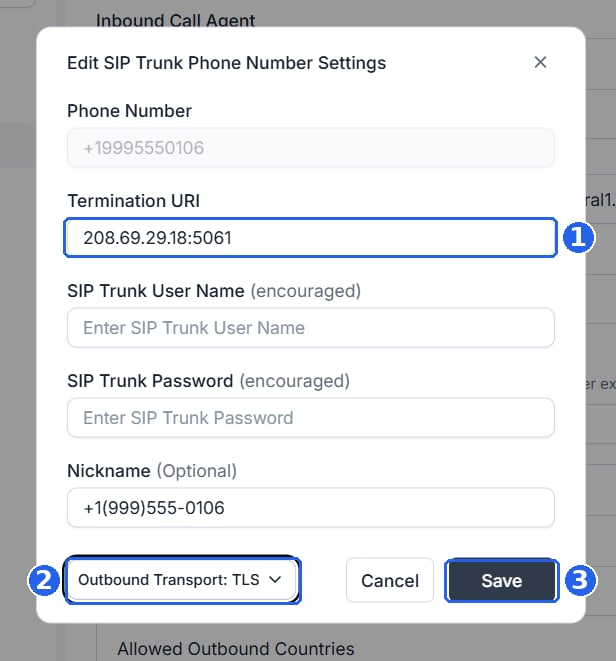
SIP trunk settings for an imported Five9 number in the Retell dashboard.
Hand the call back to Five9
The Retell–Five9 trunk is inbound only, so your Retell agent can’t transfer the call. Instead, end the call with an End Call tool or end node and set these custom SIP headers on it. Five9 reads them when the call ends and routes the caller accordingly.Five9 SBC signaling IPs
Use the SBC for the Five9 data center your domain is hosted in.Create the IVR script in Five9 (with your Five9 rep)
- Open the Five9 VCC Administrator application.
- In the left-hand tree, select IVR Scripts.
- Click the + button in the toolbar to create a new script.
- Give the script a recognizable name, for example
RetellAITransfer.
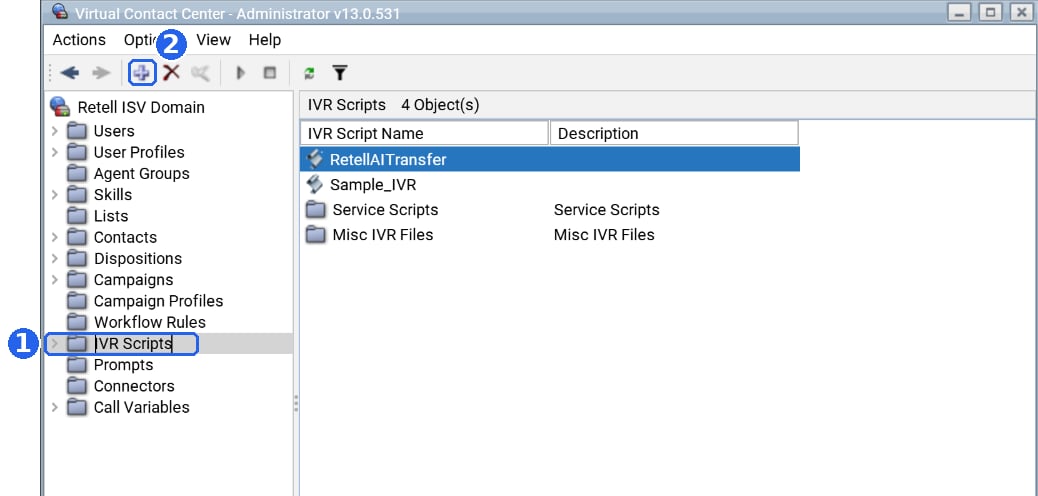
The IVR Scripts list in Five9 VCC Administrator.
Add the ThirdPartyTransfer node
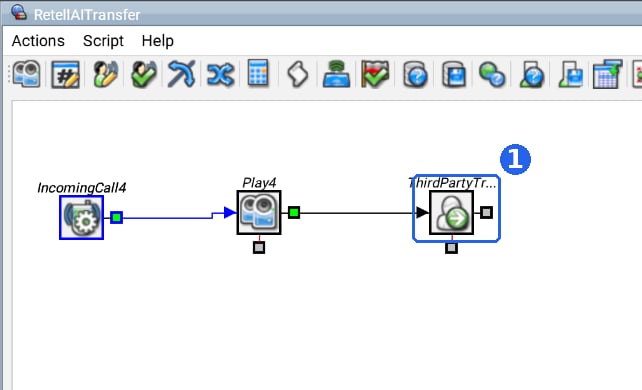
A ThirdPartyTransfer node placed at the end of an IVR call flow.
- Double-click the ThirdPartyTransfer node to open its properties.
- Leave Third Party Number set to Constant.
- Enter the number you imported into Retell, in E.164 format, for example
+19995550106. - Click Save, then save the IVR script.
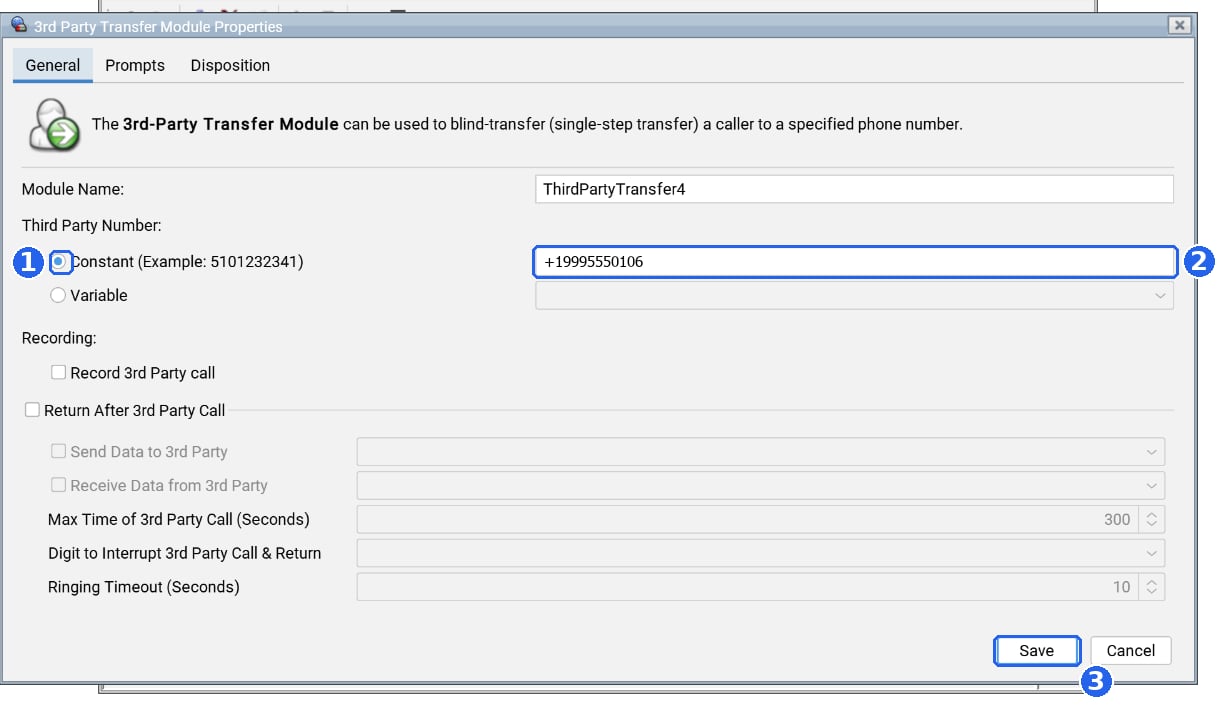
3rd Party Transfer Module properties, set to transfer to the Retell number.
Create an inbound campaign
- In the left-hand tree, select Campaigns.
- Click the + button in the toolbar to create a new campaign.
- Set the campaign type to Inbound and give it a recognizable name, for example
RetellAIAgentCampaign.
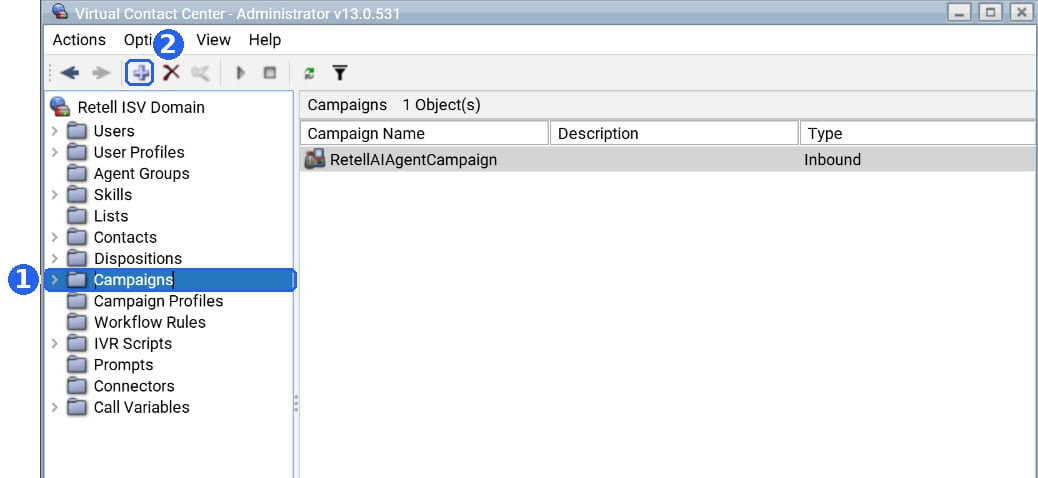
The Campaigns list in Five9 VCC Administrator, with an inbound campaign.
Attach the IVR script to the campaign
- Double-click your campaign to open its Properties window.
- Go to the IVR tab and click Add to create a new schedule rule.
- Give the rule a name, then open the IVR Script dropdown.
- Select the script you created in step 2, for example
RetellAITransfer. - Set the schedule. Choose All day long with your required days of the week, or a specific date range or time interval.
- Under Five9 VCC Channels, tick Voice.
- Click OK, then save the campaign.
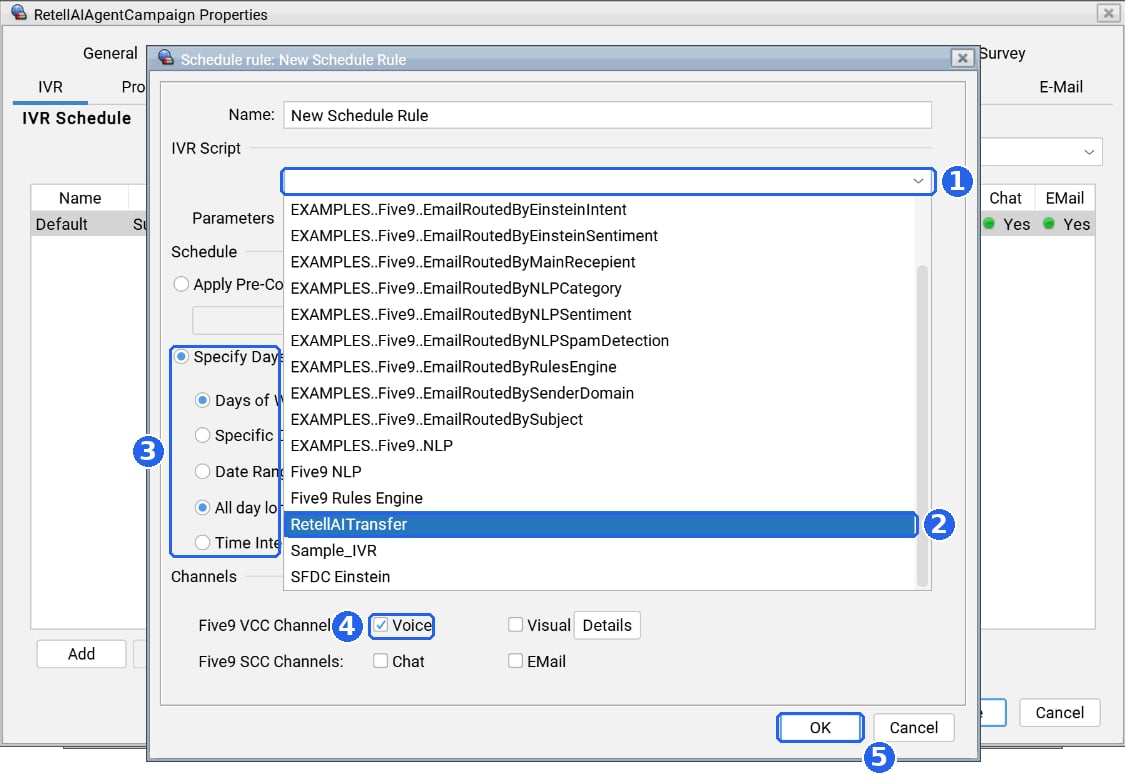
The campaign's IVR schedule rule, pointing at the Retell transfer script.
Test the integration (with Five9 and Retell)
- Call the number assigned to your campaign.
- Confirm the call transfers and that your Retell agent answers and holds a conversation.
- Trigger the End Call tool or end node once for each
x-RouteTypeyou use. Confirm Five9 routes the caller to the expected skill, agent, or external number. - Cross-check the Retell call log against the Five9 call report to confirm both platforms recorded the same call.
Troubleshooting
FAQ
Do I need to build a SIP trunk between Five9 and Retell?
Do I need to build a SIP trunk between Five9 and Retell?
Do I import the DID or the pseudo number?
Do I import the DID or the pseudo number?
Do I need to whitelist any IP addresses?
Do I need to whitelist any IP addresses?
Why should SIP Trunk User Name and Password stay blank?
Why should SIP Trunk User Name and Password stay blank?
Can the Retell agent transfer the call back to a human Five9 agent?
Can the Retell agent transfer the call back to a human Five9 agent?
x-RouteType:agent,skill,external, orhangupx-RouteValue: the target, such as the agent, skill name, or E.164 numberx-RouteReason: why the call is being handed back
x-RouteType: skill to send them to a queue rather than a specific agent, or external to send them to an outside number.How many simultaneous calls can I run through this trunk?
How many simultaneous calls can I run through this trunk?
Related
- Custom telephony — how Retell’s SIP integration works in general.
- Receive inbound calls — using your imported number.
- Custom SIP headers — pass metadata between Five9 and your agent.
- Concurrency — plan call capacity before launch.